
How to Fix WordPress 500 Internal Server Error
18 min read
24 November 2026
By Aijaz Mughal
One moment your WordPress website loaded perfectly. The next you’re staring at a white screen with a “500 Internal Server Error” message. To make matters worse, you can’t even access your WordPress admin dashboard to investigate the issue. No clear explanation, no obvious fix, and your website is completely out of reach.
The “500 Internal Server Error” can occur due to a number of reasons, but usually it is caused due to broken .htcaccess file, a corrupted core file, excessive PHP memory consumption, and a plugin or theme conflict. The fastest way to resolve the internal server error is to immediately initiate the WordPress debug logging and diagnosing the actually error message. In most of the cases fixing the .htcaccess file resolves the issue, but diagnosing and implementing the perfect fix is a matter of trial or error.
In this guide, we’ll walk you through 10 manual fixes that will allow you to diagnose and resolve the “500 Internal Server Error” in a few minutes and restore your WordPress Website.
Key Takeaways:
-
This WordPress 500 Internal Server error is a server-side problem. It prevents your website from loading properly.
-
It happens because of corrupted .htaccess files and plugins/themes conflicts. PHP memory limits and server configuration issues also cause this.
-
To find the causes behind this error and a solution. Check error logs, test installed plugins, and regenerate the .htaccess file, along with increasing the PHP memory limits.
-
Run WordPress theme and plugin updates smoothly. Also, perform timely WordPress updates and backups. These steps help prevent these 500 internal server errors.
Instant Fix: How to Resolve the WordPress 500 Internal Server Error in 2 Minutes
- Log in to your WordPress Admin Dashboard
- Navigate to the Settings tab, and click on Permalinks
- Scroll down and click Save Changes
- WordPress instantly refreshes the rewrite rules and regenerates the .htaccess file, provided it has the necessary permissions
What Is the WordPress 500 Internal Server Error?
An HTTP 500 Internal Server Error is a server-side error. It means that the hosting server suffered an unexpected problem during a request process.
When anyone visits your website. Several processes run behind the scenes. PHP scripts are processed. The database is accessed. Your active theme plus plugins also execute their functions.
If a fatal code failure happens before the page finishes loading, execution stops. The web server then hides the detailed error from the browser. A generic 500 status page is displayed instead.
According to Web Technology Surveys CMS market tracking, WordPress powers over 40% of websites worldwide. Its large market share means many sites rely on third-party plugins, themes plus other software. Server-side 500 errors are therefore common technical issues for WordPress administrators.
However, the appearance of the error varies from one website to another.
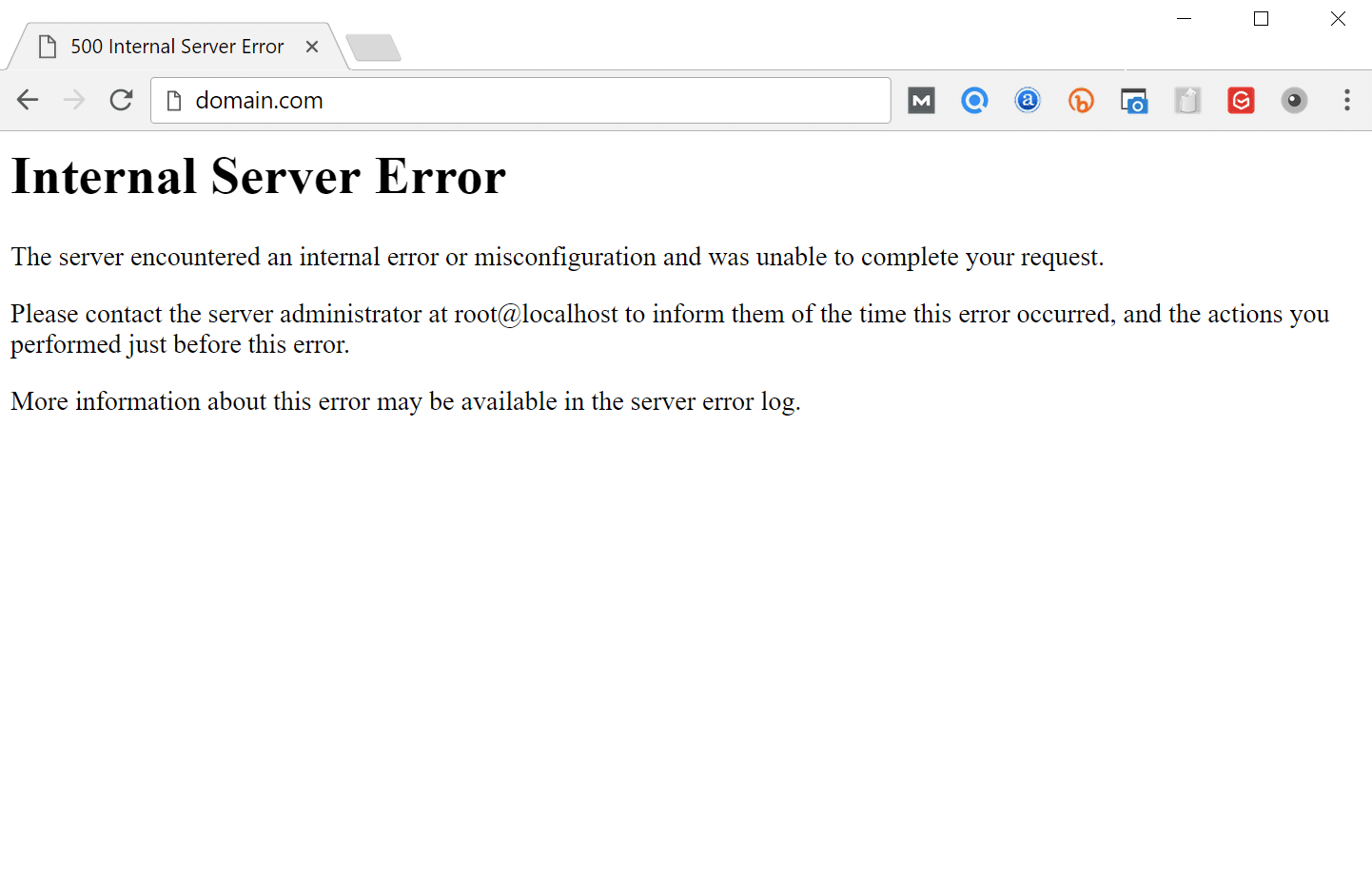
Typically, you see a plain white 500 Internal Server Error page, generated by the server itself. Whereas some of the newer WordPress installs might show a "Critical Error" page. This actually is Wordpress's newer fatal error handler, offering visitors a warmer message before finally displaying the underlying 500 Internal Server Error message on the browser. Although the server is returning a 500 status code in the background, but the screen on the browser looks a little less daunting.
- 500 Internal Server Error
- The website cannot display the page, HTTP 500
- HTTP Error 500
- HTTP 500 Internal Server Error
- Currently unable to handle the Request, HTTP ERROR 500
Common Reasons Behind WordPress 500 Internal Server Error
There are various scenarios in which you will get a 500 Internal Server Error. It does not have to affect every section of your site. The error location can give you more information about it.
Understanding the specific scenario for this error can make troubleshooting a bit easier.
Scenario 1: The Entire Site Is Down (Front-End & Back-End)
Your homepage, along with inner pages, blog posts plus login screen (/wp-admin). All show an HTTP ERROR 500.
This usually points to a wider server problem. A corrupted .htaccess file could be responsible. Incorrect root-directory permissions may also cause it. An exhausted global PHP memory limit is another possibility.
Scenario 2: Only the Admin Dashboard (/wp-admin) Displays the 500 Error
Your public website loads normally for visitors. But logging into the admin panel creates a 500 status code.
This situation can happen when an admin-focused plugin crashes during backend startup. Backup tools, along with security scanners or administrative UI plugins, may be involved.
In some cases, the plugin may simply be consuming more memory than the server allows.
Scenario 3: The Front End Is Broken, but the Admin Panel Works
You can access your /wp-admin dashboard without trouble. The public website, however, displays a 500 error.
This often points toward the active theme or its functions.php file. A broken page builder template could also be responsible. Frontend widget plugins should also be checked.
Scenario 4: The 500 Error Happens Only During Specific Actions
Your website may work normally until a specific action is performed.
For example, clicking Submit on a contact form could trigger the error. Uploading an image to the media library may produce the same result. WooCommerce checkout actions can also cause it.
This usually suggests a background script or AJAX request is failing. The process may be timing out or running out of available memory.
Scenario 5: "Error Establishing a Database Connection" Accompanied by Status 500
Instead of a plain server error, your website may show a database connection message.
The server can still return an HTTP 500 status in this situation. Incorrect database credentials inside wp-config.php are one possible cause. An overloaded database server may also be responsible.
Essential Prerequisite: Backup Your Website First
Before changing server files or disabling website components, create a complete backup.
Your backup should include both website files together with the database. This backup gives you a restore point. This is especially important if something goes wrong during the troubleshooting process.
-
With wp-admin access: Install a backup plugin such as UpdraftPlus/Duplicator. Initiate an immediate restore point. Then download the backup files to your local drive.
-
Without wp-admin access: First, log in to your hosting control panel. After this, use phpMyAdmin to export the database. Then use the FTP server to download the public_html folder. This is the archived version.
How to Fix WordPress 500 Internal Server Error (Stepwise Approach)
Go through each solution step by step. After each solution, check your site again. It is easier to find out which one solves the problem.
Solution 1: Perform a Hard Refresh & Rule Out Browser Caching
A sudden traffic surge or even a short maintenance on the server may cause a 500 error.
The server may fix itself within a few seconds. But there is a chance that the response received from the server may be stored locally in your web browser.
-
Press Ctrl+F5 for Windows users to refresh the page. Use the Cmd+Shift+R combination for Mac users.
-
Go to your site via an Incognito or Private tab in your browser.
-
If the website works fine. Then you should delete your browser history as well as cache.
Solution 2: Inspect Database Connections and Repair Tables
If there is an issue connecting to the WordPress MySQL database. You might get this 500 error and to start, verify the database information in wp-config.php.
-
Connect to your website through FTP or cPanel File Manager. Open wp-config.php.
-
Verify that these database constants match your hosting setup:
-
DB_NAME (Database Name)
-
DB_USER (Database Username)
-
DB_PASSWORD (Database Password)
-
DB_HOST (Database Host - usually localhost)
-
If the credentials are correct, open phpMyAdmin in cPanel. Check whether your database tables are intact or marked as "crashed."
A damaged database table can prevent WordPress from completing normal requests.
Solution 3: Check and Reset a Corrupted .htaccess File
A corrupted .htaccess file with invalid rewrite rules is a common cause of an internal server error in WordPress.
The file can be replaced fairly quickly.
-
Connect to your web server using an FTP client such as FileZilla or your host's File Manager.
-
Open your root website folder (public_html or www).
-
Locate .htaccess. Enable "Show Hidden Files" in your FTP settings if you cannot see it.
-
Right-click .htaccess. Rename it to .htaccess_old.
-
Refresh your website. If it loads, log into your dashboard. Go to Settings > Permalinks, then click Save Changes.
Following this, WordPress will generate a fresh. htaccess file automatically.
Solution 4: Increase Your PHP Memory Limit
If a plugin or script on your website requests more server RAM than allocated, execution can be stopped. The result may be an HTTP ERROR 500.
The PHP memory limit can be increased through configuration files.
Method A: Edit wp-config.php
Open wp-config.php through FTP. Add this line directly above /* That's all, stop editing! Happy publishing. */:
define('WP_MEMORY_LIMIT', '256M');
Method B: Edit .htaccess
If modifying wp-config.php does not resolve the problem, open .htaccess.
Add this line at the bottom:
php_value memory_limit 256M
If you do not prefer to change or modify core server files on a live website yourself, then take professional services from an experienced WordPress web development company in Dubai like AUN Digital.
Your server limits can be reviewed alongside backend configurations. Changes can then be made with less risk to site stability.
Solution 5: Audit and Deactivate Problematic Plugins
Plugin conflicts are a common source of PHP fatal errors. Deactivating plugins can help isolate the extension causing the crash.
Security data from Patchstack's CMS research report states that over 90% of technical vulnerabilities plus execution crashes across the WordPress ecosystem originate within third-party plugins rather than core files.
If you can access the Dashboard (Scenarios 3 & 4):
-
Go to Plugins > Installed Plugins.
-
Select all plugins. Choose Deactivate from the bulk menu, then click Apply.
-
Check your website. If it loads normally, reactivate plugins one by one. Test the website after each activation to find the problematic plugin.
If you are locked out of the Dashboard (Scenarios 1 & 2):
-
Connect through FTP. Open wp-content/.
-
Rename the plugins folder to plugins_deactivated.
-
All plugins will now be disabled. Log into your dashboard, rename the folder back to plugins, then reactivate plugins individually.
Following this process makes the conflicting plugin easier to identify.
Solution 6: Switch to an Unmodified Core Default Theme
If plugin testing does not clear the error, the active theme should be checked next.
Your theme may contain incompatible code or a broken function.
-
If you have admin access. Go to Appearance and then Themes. Activate an official core theme like Twenty Twenty-Five.
-
If you don’t have any access. Then connect using FTP. Navigate to wp-content/themes/. Rename your active theme directory to something like mytheme_old. WordPress should then roll back to an official default theme.
If the website loads afterward. The active theme needs more auditing.
Solution 7: Enable WordPress Debug Mode (WP_DEBUG) to Read Logs
Rather than guessing what failed. Just enable WordPress Debug Mode. This makes it certain that the error is written to a log file.
-
Connect through FTP. Open wp-config.php.
-
Find:
define('WP_DEBUG', false);
Change it to:
define('WP_DEBUG', true);
define('WP_DEBUG_LOG', true);
define('WP_DEBUG_DISPLAY', false);
-
Save the file. Refresh your website to trigger the error again.
-
Open debug.log inside the wp-content/ directory. Check the precise PHP fatal error plus the file path.
The log file can show you the origin of the error after this. It may be coming from a plugin/theme or even a custom function.
Solution 8: Re-upload Fresh WordPress Core Files
Interrupted updates can leave WordPress core files damaged. File corruption can create unexpected server errors too.
Re-uploading clean core directories can resolve the issue. Your custom content remains unaffected when this is done correctly.
-
Download the latest official WordPress release package from WordPress.org.
-
Unzip the package on your computer. Delete the wp-content folder plus wp-config-sample.php from the extracted files.
-
Connect through FTP. Upload the fresh wp-admin and wp-includes folders to your root directory. Select Overwrite when prompted.
Your existing content should remain in place because wp-content is not being replaced.
Solution 9: Reset File and Folder Permissions
Incorrect file permissions can stop the server from reading and executing backend scripts. This might result in an HTTP 500 Internal Server Error.
According to the RFC 9110 HTTP Semantics specification, a 500 status code means the server encountered an unhandled fault while processing a request.
For WordPress environments. Standard permissions generally use 755 for directories together with 644 for files.
-
In FileZilla, right-click your root directory (public_html). Choose File Permissions.
-
Set the value to 755. Select Recurse into subdirectories. Apply it to directories only, then click OK.
-
Right-click again. Choose File Permissions. Set the value to 644. Select Recurse into subdirectories. Apply it to files only, then click OK.
Afterward, reload your website to check whether the server error has cleared.
Solution 10: Verify and Upgrade Your Server's PHP Version
Modern WordPress versions can struggle on older PHP environments. Legacy versions such as PHP 7.4 or lower may cause syntax failures with updated plugins.
As documented in Google Search Central technical guidelines, server-side 5xx status codes can cause Googlebot to reduce crawling rates. Extended server errors may also lead to temporary ranking changes.
Log in to your hosting account panel. Open Select PHP Version or MultiPHP Manager.
Update your domain to PHP 8.1 or PHP 8.2.
After the upgrade, test your website again. Check important pages plus backend functions before considering the issue resolved.
How to Avoid Recurring 500 Internal Server Errors on Your WordPress Website
Fixing a WordPress 500 Internal Server Error brings your website back live and accessible online. But keeping the same problem from returning takes routine care. Server side failures mostly build up slowly. So a site that looks fine now can still crash later. Outdated plugins or software conflicts are common reasons for another downtime issue, as are limited hosting resources.
A steady update routine is one of the simplest ways to stay your site protected. Core files, along with themes, should be kept compatible with current PHP versions and third-party extensions need the same attention. Unused or abandoned plugins need to be removed regularly. A smaller codebase leaves less room for background scripts to clash.
Major updates or database changes should be tested in a staging environment first. Custom scripts need the same check. Such a space lets you find PHP fatal errors plus memory problems before any visitor sees them.
Final Words
Encountering an unexpected 500 Internal Server Error on your WordPress site can be utterly frustrating, as it brings your website to a complete halt. However, compared to other errors, it is much easier to fix once you identify the root cause. In more than 90% of cases, the error traces back to a broken .htaccess file, excessive PHP memory consumption, or a conflicting plugin.
Try the troubleshooting approach that we’ve covered in the article above. If you’re still unable to determine the root cause, the next best approach would be to review the WordPress debug logs. It can offer valuable information regarding what is actually causing the crash.
However, if the 500 Internal Server Errors becoming a recurring headache, it might be a sign of a deeper configuration or server issue. In such cases, it might become mandatory to bring in a professional to diagnose and resolve the issue. This is where a professional WordPress web development company might come in handy. They cannot just help in identifying the root cause, but they will also implement a lasting solution and take preventive measures as well to ensure that your website remains stable, secure, and delivers a smooth user experience.
Frequently Asked Questions (FAQs)
Q1. Does a 500 Internal Server Error mean my website was hacked?
Not necessarily. Malware can cause server execution failures, but common causes include plugin conflicts, PHP memory limits plus corrupted configuration files.
WP_DEBUG or server access logs can help reveal whether an unauthorized file is involved.
Q2. How long does it take for a 500 Internal Server Error to affect my SEO rankings?
A short server error lasting a few minutes or hours usually will not harm rankings. However, prolonged HTTP ERROR 500 responses can reduce Googlebot crawling plus affect affected pages temporarily.
Q3. What is the difference between a 500 Internal Server Error and a 502 Bad Gateway Error?
A 500 Internal Server Error usually means the origin server encountered an unhandled problem. A 502 Bad Gateway Error means a proxy or gateway received an invalid response from an upstream server.
Q4. Why does the 500 Error happen only when I try to upload images or media?
Image processing can exceed your server's available resources during uploads. Check upload_max_filesize, post_max_size plus available PHP memory in your server configuration.
Q5. Will fixing a 500 error delete my WordPress posts, pages, or WooCommerce orders?
No. The 500 Internal Server Error is normally an application or server execution problem.
Your WordPress database remains intact even when core files are replaced or plugins are deactivated.
Q6. What should I do if none of the troubleshooting steps resolve the 500 Error?
If these fixes fail, the problem may exist within your server infrastructure or PHP configuration. Contact your hosting provider or an experienced WordPress development team to inspect raw error logs.
Author
Aijaz Mughal is a digital marketing strategist, business growth advisor and Founder & Managing Director of Aun Digital. With more than 15 years of experience in the UAE market, he has worked across SEO, PPC, performance marketing, digital strategy, social media, project management and team leadership.Throughout his career, Aijaz has worked with leading brands including Emaar, Masdar, Honda, Leejam, Unilever, The Dubai Mall, Emerson, Moorfields and Yamaha, helping businesses develop effective digital strategies and achieve measurable growth.
Speak to an Expert