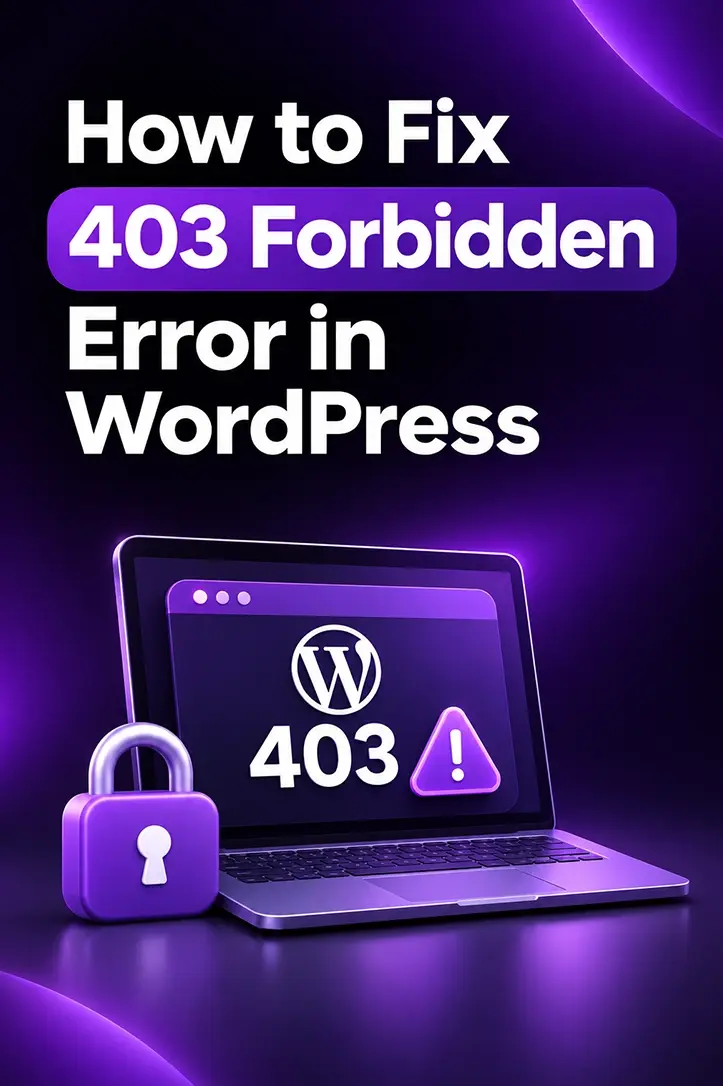

How to Fix 403 Forbidden Error in WordPress
22 min read
25 November 2026
By Aijaz Mughal
Encountering an unexpected “403 Forbidden Error” on your website can be frustrating and concerning. This error occurs when your web server blocks access to a requested page or resource. On a WordPress website, a “403 Forbidden Error” is commonly triggered due to incorrect file permissions, a corrupted .htaccess file, accidental changes to server-side file settings, or improperly configured hotlink protection directives.
The “403 Forbidden Error” restricts users from accessing your website or specific pages hosted on your website. It is a critical issue that can impact the user experience and SEO performance of your website. But the good news is that it can be resolved in a few minutes, simply by addressing the underlying configuration or permission issue.
In this guide, we will cover 12 practical methods to diagnose and fix the “403 Forbidden Error”, starting with common fixes and moving to more advanced and server-level fixes.
Key Takeaways
-
A “403 Forbidden Error” means that a server understands your request. But it refuses to give access to the requested webpage. This situation happens because of incorrect permission issues or security restrictions.
-
This “403 Forbidden Error” happens most of the time due to corrupted .htaccess files. But incorrect file permissions and plugin conflicts can also cause this.
-
You should check file permissions and regenerate the .htaccess file. Try to disable plugins that are causing issues plus review security rules.
-
Apply proper access settings and take regular WordPress updates as well as backups to avoid these “403 Forbidden Error”.
What is a “403 Forbidden Error” in WordPress?
A “403 Forbidden Error” in WordPress is actually an HTTP status code that indicates the web server has received and understood the request but denies access to the requested page or resource.
When someone opens a URL, the server checks different access rules. Apache, NGINX or LiteSpeed may handle these checks. A CDN or security plugin can also stop the request.
If one layer rejects the request, a 403 response can appear. The problem may be inside WordPress or outside it.
Depending on your setup, the error can appear like this:
-
403 Forbidden: Access to this resource on the server is denied
-
HTTP Error 403: Forbidden
-
403 Forbidden: Authorization Required
-
Access Denied: You don't have permission to access on this server
-
Error 403: Web server is returning an unknown error
In contrast to a 401 unauthorised error that typically occurs when the server fails to verify the user’s identity due to missing or invalid credentials, a “403 Forbidden Error” refuses access to the requested source even after the request has been authorised. In simple terms, a 401 error indicates an authentication issue, whereas a 403 error indicates an authorization issue.
What Causes the 403 Forbidden Error in WordPress?
Before we dive deep into exploring practical methods to fix the “403 Forbidden Error”, it is crucial to diagnose the factors that causes this error in the first place. The primary function of a web server is to serve files, but its core responsibility is to maintain and enforce security restrictions. A web server follows rules, also referred to as permissions which determine who can view, modify, and execute files. In case a request falls outside the permitted access levels, the server instantly blocks the request with a 403 response.
Listed below are some of the common causes that leads to a “403 Forbidden Error” response from the server.
1. Corrupted or Misconfigured .htaccess File
Apache or LiteSpeed servers use .htaccess for access rules. It also handles rewrites plus directory protection. A small syntax mistake can create a site-wide 403 forbidden error.
A security plugin may also add a faulty rule. In some cases, an older directive is left behind after a plugin change.
2. Incorrect POSIX File/Folder Permissions
There are particular permission setups used for Linux-based website files. 755 and 644 permissions are usually set for directories and files, respectively.
When permissions become too limiting, they may limit access. Such settings like 700 or 600 permissions will make the server not able to read required files.
3. Excessive Security Plugins
Plugins used for securing websites like Wordfence, alongside iThemes Security or All In One WP Security, might prevent malicious actions.
Sometimes, however, even normal actions will be recognized as malicious and you will be blocked. It might be related to login, XML-RPC requests or bulk posting.
You will be added to a temporary blocklist. Still, your website will remain working for other visitors.
4. Web Application Firewall (WAF)/CDN Edge Blocks
Services such as Cloudflare, as well as Sucuri or AWS WAF, will analyze incoming requests. Suspicious IP addresses or request headers will be blocked.
Requests will be filtered prior to reaching your hosting server. This will make troubleshooting more difficult. In such cases, the origin website may still be working normally.
5. Misconfigured Hotlink Protection Directives
Hotlink protection stops other websites from directly using your media files. Images, videos and PDFs are commonly covered by these rules.
Problems can occur when allowed referrers are configured incorrectly. Your own domain may then be prevented from loading its media.
6. Malware Contamination & Unauthorized File Changes
A hacked website may contain malicious files or backdoors. Modified .htaccess rules can also be present.
Permissions may have been changed without your knowledge. Access-deny rules can also be added to affected directories. The issue may continue until the unwanted changes are removed.
7. Server-Level IP Blacklisting & Bot Filtering
Hosting servers most of the time use security tools like Fail2ban plus ModSecurity. Repeated failed SSH, together with FTP or wp-login.php attempts, can trigger an IP block. If you are blocked. Even normal requests may return a 403 response.
How to Fix 403 Forbidden Error in WordPress (12 Stepwise Fixes)
A WordPress "403 Forbidden Error" can start at different levels. It can be caused by the browser, WordPress, the web server or CDN.
Several systems can be responsible for this problem. Random changes should be avoided. Start with simple checks first. Move toward server settings only when needed.
You should follow the steps below in the right order. After this, the root of the issue can be narrowed down.
Step 1: Clear Browser Cache, Cookies and Site Data
Old browser data can sometimes cause a false 403 block. Damaged cookies may also affect authentication.
This is a safe first step. Nothing inside WordPress needs to be changed.
-
Open your browser settings using CTRL + SHIFT + DEL on Windows. If you are a Mac user, then press this combination of keys: CMD + SHIFT + DEL.
-
All time should be set on the time range.
-
Select Cookies and other site data. Also select cached images plus files.
-
Click on the Clear Data option.
-
Test the website using an Incognito tab/ Private window.
Open the affected page again. If it works in Incognito mode, stored browser data was likely involved.
Step 2: Roll Back to a Working Server Backup
Did the "403 Forbidden Error" appear after an update or plugin change? A recent backup may be the quickest way back.
A clean restore point allows you to have a useful starting point. It also makes sure to remove recent changes. That may have caused the block.
-
Log into your web hosting panel. Such as cPanel, Cloudways or even SiteGround.
-
Click the Backups section.
-
Select a restore point of the instance before the error appeared.
-
Confirm the selected backup.
-
Run the restoration process.
Choose a backup from a known working period. Avoid restoring an older copy. Particularly without checking its date.
Go to the main website URL together with several internal pages. You should confirm that normal access has returned.
Step 3: Reset Folder and File Permissions
Access to WordPress files can become limited due to incorrect permissions. A "403 Forbidden Error" might then appear on specific folders.
Based on the official WordPress documentation. The common settings are 755 for directories. 644 for files. These settings allow normal server access and without making files overly open.
-
Connect to your hosting File Manager/FileZilla.
-
Open your root directory. Most of the time, this is .
-
Right click . Select File Permissions.
-
Enter 755 for directories.
-
Make the Recurse is enabled for subdirectories.
-
Select Apply to directories only. After that, click OK.
-
Repeat this process using 644 for files.
Never use the wider permissions option to make the error disappear simply. That can create a separate security problem.
Refresh the affected pages. Check whether the folders along with files can now be accessed or not.
Step 4: Regenerate a Corrupted .htaccess File
A damaged .htaccess file is one of the common causes of a "403 Forbidden Error". This applies especially to Apache-based hosting.
Plugins may add rules to this file. A bad directive can stay even after a plugin update/configuration change.
-
Access your website files. Using the FTP or File Manager.
-
Open the public_html directory.
-
Go to the .htaccess file.
-
Rename it to .htaccess_old.
-
Load your website again.
-
If the site opens, log into WordPress.
-
Go to Settings and then Permalinks.
-
Click Save Changes. Do not change the permalink structure.
A new .htaccess file should then be generated by WordPress.
Open several internal pages. Check posts, pages and other routes for 403 errors.
Step 5: Deactivate and Isolate Rogue WordPress Plugins
A faulty plugin can block admin areas plus front end resources. The problem is often noticed after an update.
Security plugins deserve extra attention here. However, regular plugins can also create conflicts.
-
Connect through FTP or File Manager.
-
Open wp-content/.
-
Rename the plugins folder to plugins_deactivated.
-
Reload your website.
-
If the site works, rename the folder back to plugins.
-
Log into WordPress admin.
-
Open Plugins.
-
Reactivate each plugin individually.
This process lets you test plugins one at a time. After this, the faulty plugin can then be identified without the need to disable the full site permanently.
You can check this if a 403 Forbidden error returns after activating one plugin. That plugin is likely involved.
Step 6: Inspect Security Plugin Whitelists and Blocked IPs
Your IP address can be blocked by the security tools after they detect unusual activity on your end. False positives can also sometimes be triggered during site updates as well as login attempts.
According to the Sucuri Website Security Report, Security experts point out that firewalls alongside security plugins trigger a lot of false positive blocks. Overly strict rules frequently lock out real visitors or administrators by mistake.
Check the security event before removing the block. It may explain why the IP was flagged.
-
Open your security plugin settings through WordPress.
-
If you are locked out. Use the available database settings.
-
Find Firewall Rules and Blocked IPs.
-
Search for your current public IP address.
-
Remove the IP from the blocked list.
-
Add it to the Allowlist/Whitelist if required.
An IP address shouldn’t have unrestricted access without any purpose behind it. You need to review the security incident initially.
Open your WordPress administrator panel. Make sure that the restriction previously imposed on your system is revoked.
Step 7: Reconfigure Host-Level Bot and Firewall Rules
Managed hosting providers may implement bot protection at the server level. API requests that are legitimate may be mistakenly flagged by the system.
Background requests may also get blocked. This might also apply to reputable third parties.
-
Log in to your hosting control panel. Such as Cloudways, as well as cPanel or SiteGround.
-
Open Security > Bot Protection or Firewall Rules.
-
Review access logs for blocked requests.
-
Check for your IP or trusted service API.
-
Add trusted IP addresses or request paths when appropriate.
Review the firewall event before changing any rule. A block may have been created for a valid security reason.
Retry the blocked operation. Confirm that the hosting firewall now permits it.
Step 8: Enable Direct PHP Execution in Server Settings
Some managed hosts block direct PHP execution for security reasons. This can affect certain WordPress features or plugin functions.
-
Open your hosting management dashboard.
-
Go to Application Settings > WordPress Settings.
-
Search for Direct PHP File Access or PHP Execution Control.
-
Check whether PHP execution is disabled.
-
Enable it only for the required application directories.
Direct PHP execution should not be enabled everywhere without a clear reason. Extra access can increase security risks.
Test the feature or endpoint that returned the "403 Forbidden Error".
Step 9: Adjust CDN Firewall and Web Application Firewall (WAF) Settings
Sometimes Cloudflare, combined with Sucuri as well as Imperva, can block valid requests. This error happens if security rules treat normal activity as suspicious activity.
The request may be stopped at the CDN. Your hosting server may never receive it.
-
Log in to your CDN management console, such as the Cloudflare Dashboard.
-
Open Security > Events / Firewall Rules.
-
Find recent 403 blocks linked to your IP or user-agent.
-
Review the rule responsible for the block.
-
Adjust the rule threshold when needed.
-
Add a temporary firewall bypass for your IP.
-
You can also enable Development Mode for testing.
Security protections should not stay disabled for long. Temporary changes are enough for testing.
Visit the website after the change. If access returns, the CDN security layer was likely responsible.
Step 10: Disable or Update Hotlink Protection Settings
Hotlink protection can cause 403 errors on media files. This commonly happens if allowed domains are missing.
-
Log in to cPanel or your hosting manager.
-
Find Hotlink Protection under Security.
-
Check your main domain.
-
Add staging URLs when needed.
-
Add CDN subdomains if your setup uses one.
-
Make sure these domains appear under URLs to allow access.
-
Temporarily disable Hotlink Protection for testing.
This check is useful when normal pages work. The error may appear only on images, videos or PDFs.
Open the affected media URL directly. Confirm that the file loads without a 403 response.
Step 11: Scan for Malware and File Integrity Tampering
It is also possible that a compromised website can contain unwanted files together with other modified rules. Malware can affect .htaccess, permissions or other access settings.
-
Open your hosting dashboard.
-
Run the available server-side malware scanner.
-
If dashboard access works, use Wordfence or Sucuri for a file integrity check.
-
Review suspicious files listed in the scan report.
-
Reinstall WordPress core through Dashboard > Updates > Reinstall now when required.
-
Remove unknown files after confirming they are unsafe.
A clean backup should be kept before manual file removal. Some flagged files may need technical review first.
Confirm clean scan results. Then reload the affected pages and check the 403 response.
Step 12: Contact Hosting Support or Hire a WordPress Maintenance Expert
Several 403 Forbidden errors cannot be rectified from WordPress by itself. Server ownership, NGINX settings or WAF rules may be responsible.
At this stage, hosting support should be involved. The server logs can easily show what is being blocked.
-
Contact your web host's technical support team.
-
Share your public IP address.
-
Provide the exact affected URL.
-
Mention when the issue started.
-
Ask support to inspect server error logs.
-
Useful logs include /var/log/apache2/error.log or /var/log/nginx/error.log.
-
Follow up on any firewall, ownership or permission issue found.
Give support enough information to reproduce the problem. This can make server-level troubleshooting much easier.
Ask support to confirm that server logs no longer show access restrictions.
How to Avoid "403 Forbidden Error" in WordPress
Locating the root cause of a "403 Forbidden Error" can take some time. But you can follow these maintenance tips that will make sure that this issue does not arise again in the future.
Update Everything: Make it a priority to update your WordPress core, all of your themes and plugins to their latest version. These old versions of plugins as well as themes, can cause vulnerabilities together with incompatibilities.
Enable Automated Cloud Backups: Take automated daily and live backups. Having an updated backup of your site will make it certain that you can easily restore it.
Always Test Plugins on Staging Site: Make sure that you always test any plugins, custom coding or even any server updates on your staging site. Never perform these tests on your live site.
Have an Expert Maintenance Team: You can take services from a professional web design agency that will not only look into your security but will also help you test your website's performance.
Why Should I Get WordPress Maintenance Support?
Server permissions, .htaccess rules and security firewalls can be difficult to manage. A small configuration change can affect admin access or important business pages.
For businesses operating in Dubai or the UAE, AUN Digital provides website maintenance services as a full-service WordPress web development company. Its technical team can help keep websites updated, secure and ready for visitors.
Regular maintenance can also cover security checks, updates, monitoring and technical troubleshooting. Problems can be spotted before they become major access issues.
Final Words
Frequently Asked Questions (FAQs)
Q1. Does a "403 Forbidden Error" hurt my Google rankings?
A "403 Forbidden Error" can affect search visibility if it remains active. Googlebot cannot access pages returning a 403 status. If the problem continues, affected pages may stop being crawled or indexed. Important landing pages should be checked first when several URLs are affected.
Q2. Can a hosting provider trigger a 403 Forbidden error automatically?
Yes. Hosting providers can apply automatic server security rules. High resource usage, malware activity or repeated login attempts may trigger a block. These rules protect the hosting environment. However, legitimate visitors can sometimes be blocked by mistake.
Q3. Why does the "403 Forbidden Error" only show up on wp-admin?
A 403 error limited to wp-admin usually points to an admin-specific restriction. A security plugin may have blocked your IP. .htaccess rules can also restrict the admin directory. Server-level bot protection may create similar problems.
Q4. What is the difference between a 401 Unauthorized and a "403 Forbidden Error"?
A 401 error usually means authentication is missing or failed. The server expects valid credentials before access is granted. A "403 Forbidden Error" is different. The server understands the request but refuses access. Changing login details will not help when a firewall or permission rule is responsible.
Q5. Why does a "403 Forbidden Error" occur only when uploading specific file types or media?
A WAF or security plugin may treat certain uploads as risky. SVG files, PDFs or very large uploads can trigger these restrictions. Server settings such as upload_max_filesize or post_max_size may also affect uploads. Security logs should be checked when only certain file types fail.
Q6. Can an outdated SSL/TLS certificate or HTTPS misconfiguration cause a "403 Forbidden Error"?
Yes. Strict HTTPS settings can cause access problems. Incorrect certificates, SNI settings or intermediate certificate chains may be involved. Reverse proxy settings can also cause trouble. For example, .htaccess may force HTTPS while the CDN connects to the origin through HTTP. The origin server may then reject the request with a 403 response.
Author
Aijaz Mughal is a digital marketing strategist, business growth advisor and Founder & Managing Director of Aun Digital. With more than 15 years of experience in the UAE market, he has worked across SEO, PPC, performance marketing, digital strategy, social media, project management and team leadership.Throughout his career, Aijaz has worked with leading brands including Emaar, Masdar, Honda, Leejam, Unilever, The Dubai Mall, Emerson, Moorfields and Yamaha, helping businesses develop effective digital strategies and achieve measurable growth.
Speak to an Expert