
4 Common WordPress Errors and How to Fix Them: The Ultimate Guide
16 min read
25 November 2026
By Aijaz Mughal
Key Takeaways
-
The most common WordPress errors come from theme and plugin conflicts, PHP memory limits, server configuration issues, or corrupted files.
-
White Screen Error, 500 Internal Server Error, or other critical errors can mostly be traced through WordPress debug logs as well as server error reports.
-
An outdated PHP version, several plugin conflicts and file permissions can affect your website functionality. Always test changes one by one to identify the actual origin.
-
Some errors need different troubleshooting methods and it depends on their source. Most of these errors are database connection failures and admin-ajax.php issues.
-
Regular website updates and backups, alongside staging tests and website monitoring, can help prevent recurring WordPress errors.
What to Do Before Fixing Any WordPress Error
Make sure to take a few precautions before changing the website files and disabling plugins. These steps reduce the risk of causing more WordPress errors on a live website.
1. Take a Full Website Backup
Make sure to start with a new and fresh backup of your website files. This backup must include your website files as well as the database. You can also use a WordPress plugin such as UpdraftPlus or export the database using phpMyAdmin. You can also download a copy of the public_html directory using FTP.
If something goes wrong. Your website backup gives you a way to restore the previous version.
2. Test Your Site in a Staging Environment
Always test everything on a staging website. It is a separate place to test changes. You can use this staging site to edit the code, alongside plugin testing, new content updates, or even theme changes before applying them to your live website. This practice helps you find problems early and easily without disrupting the experience for visitors.
3. Enable WordPress Debug Mode
Some PHP errors don’t show up on the screen. In this situation, WordPress debug mode can help you find those errors. You can also save the error logs to a separate file rather than showing these errors to end users.
Open wp-config.php and add the following lines of code.
define('WP_DEBUG', true);
define('WP_DEBUG_LOG', true);
define('WP_DEBUG_DISPLAY', false);
This file includes all of your error logs in wp-content/debug.log. This file includes timestamps, along with file paths and details about the specific code involved.
Turn off debugging on the live site after you complete the troubleshooting. Debug logs might contain sensitive technical information. Make sure access to them is restricted.
4. Clean the Cache and Deactivate Plugins
Plugin conflicts can cause frontend errors plus they can also stop different parts of your website from working correctly. Cached files may also make a fixed issue appear constantly.
Clear your server as well as the CDN cache and check if the site is working properly. You should also try to disable plugins because they are sometimes causing the problem. But make sure to do these changes with care. Particularly, if you are working on a live website.
Check these Most Common WordPress Errors and their Fixes
We have discussed all the common WordPress Errors during the website visits. You will also get the primary causes behind and their possible fixes in a stepwise approach. Based on the Outage Cost data, unplanned website downtime costs an average of $137 to 427 per minute for medium-to-small-sized businesses. If your website goes down for just one hour due to a major gateway error, you are expected to lose an average revenue and productivity loss of over $25,000.
504 Gateway Timeout Error in WordPress
This error of 504 Gateway Timeout Error happens if the proxy gateway, CDN and an edge server time out while waiting to get a response from the origin web server.
Primary causes: The main causes of 504 Gateway Timeout errors are Cloudflare/proxy timeouts during long script runs, a heavy origin server load, or even slow database queries.
How to Fix 504 Gateway Timeout Error:
-
Clear the relevant CDN or reverse proxy cache. Then check if the error is still there.
-
Review PHP execution limits if a specific script is taking too long. Increase them only if the hosting environment allows it.
-
Inspect slow database queries as well as server resource usage. A tool such as WP-Optimize may help with supported database cleanup tasks. But it will not fix every cause of a timeout.
If the issue is still there, you can check our detailed blog on ‘How to Fix the 504 Gateway Timeout Error in WordPress’ to solve this WordPress error.
Read our detailed guide on How to Fix the 504 Gateway Timeout Error in WordPress
403 Forbidden Error in WordPress
This particular 403 Forbidden error shows that the server has denied access to a requested file and directory. It has understood the request. But permission rules do not allow it to be completed.
Primary causes: The main causes of 403 Forbidden Error are restrictive .htaccess rules, together with incorrect file permissions or a security plugin’s firewall settings. These might block legitimate requests.
How to fix the 403 Forbidden Error:
-
Open your hosting panel. Then check file permissions. 755 is the file permission attribute for folders and for files, this permission attribute is 644. But keep in mind the server requirements may vary.
-
Temporarily rename this .htaccess file to check if a rule is causing the denial. But first, back up the file. Then regenerate or restore the correct rules after testing.
-
If there is a security plugin that appears to be responsible for this, then temporarily disable it in a controlled way. Review the firewall logs before changing any access settings permanently.
WordPress security guidance recommends the right file permissions. This is to help protect website files. Incorrect settings can block legitimate access, so verify the cause prior to applying broad permission changes. We have covered this particular WordPress error in our detailed blog on ‘How to Fix 403 Forbidden Error in WordPress’.
Read our detailed guide on How to Fix the 403 Forbidden Error in WordPress
WordPress 500 Internal Server Error in WordPress
A WordPress 500 Internal Server Error shows that the server has suffered an unexpected issue processing a request. It is a general error message as opposed to a clear explanation of what happened.
Primary causes: The main reasons for a WordPress 500 Internal Server Error can be a damaged .htaccess file, a faulty functions.php file and insufficient PHP memory. Another possible reason is corrupted WordPress core files.
How to fix the 500 Internal Server Error:
-
Connect to FTP and go to the .htaccess file in the root directory. Rename this file to .htaccess_old to check if the file is causing the error.
-
Log in to WordPress. Open Settings and go to Permalinks. Click Save Changes to generate the permalink rules again. If needed, make sure that the resulting .htaccess configuration is correct for your server.
-
If core files appear damaged. Download a completely new WordPress package from the official source. Replace the wp-admin and wp-includes directories with clean copies. But after backing up your site. Make sure not to overwrite wp-content or your configuration file.
You must find the 500 internal server error through server logs. It should not be directed to one cause automatically. We have discussed this in our ‘How to Fix WordPress 500 Internal Server Error?
Read our detailed guide on How to Fix the 500 Internal Server Error in WordPress
Avoid an Excessive DOM Size Warning in WordPress
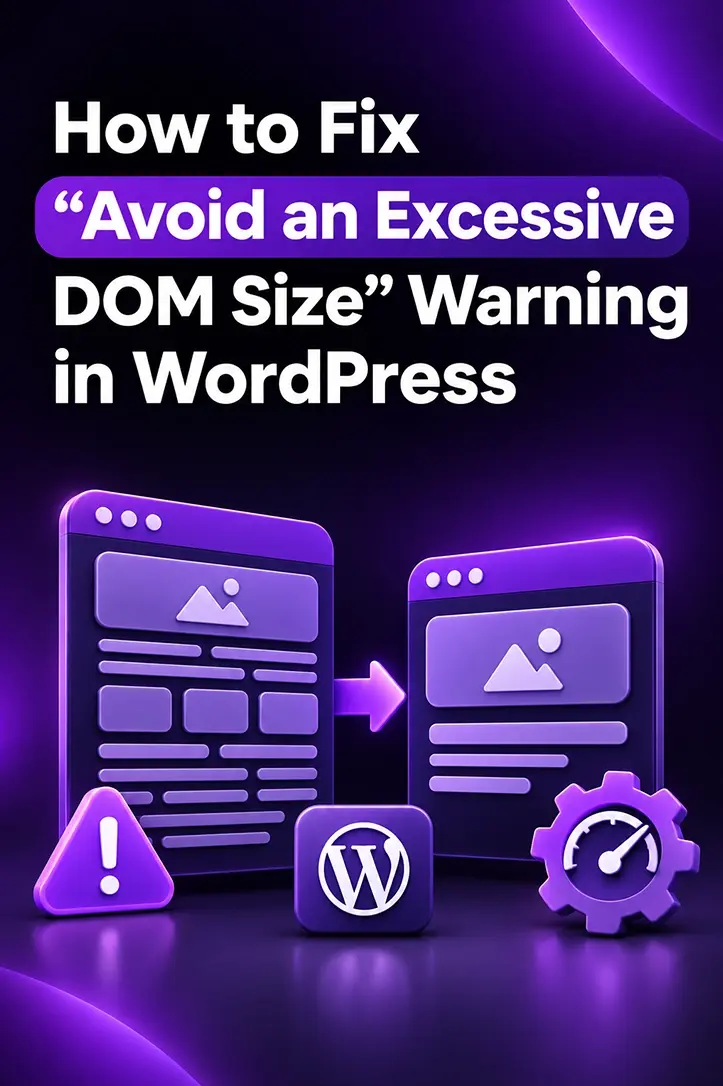
The “Avoid an Excessive DOM Size warning” appears in Google PageSpeed Insights. It shows that the page has more HTML elements than recommended. It also means the structure requires extra work during rendering.
Primary causes: There are deeply nested
How to fix Avoid an Excessive DOM Size Warning:
-
If your page builder supports Flexbox Containers. Use them to reduce unnecessary wrapper elements. Review the layout after making changes because some sections may depend on their existing structure.
-
Paginate large WooCommerce product archives or even lengthy blog comment sections. This lowers the number of elements loaded on a single page.
-
Delay third-party live chat widgets until they are needed. Script management tools may help control when these resources load.
We have a dedicated blog on this topic. You can check ‘How to Fix “Avoid an Excessive DOM Size” Warning in WordPress ’
Read our detailed guide on How to Fix Avoid an Excessive DOM Size Warning in WordPressBest Practices to Avoid WordPress Errors
Fixing website errors can restore your website online. It can also revive the functionality of your site. But regular website maintenance and best web practices help reduce the chances of the same issue happening again. These problems mostly develop when outdated code remains on your site. It can also happen if the database tables grow unnecessarily or server resources are exhausted.
Practical website maintenance services should cover these routine maintenance points:
-
Test all of your updates away from the live website.
-
Keep routine database backups plus separate copies of website files.
-
Remove unnecessary extensions that are not needed.
-
Get infrastructure that suits your traffic as well as technical requirements.
-
Review security alerts and site performance issues.
1. Maintain an Isolated Staging Workflow
One of the important aspects is to avoid making custom code edits along with other major theme or plugin updates directly to your live website. Make sure to use a staging environment provided by your hosting company to test the changes in the first place.
Review the website’s main features after each update. Browser developer tools can help you find JavaScript and failed WordPress request errors. After finalizing the staging site and confirming it works as expected, deploy the tested changes to production. Deploy the tested changes to production.
2. Implement Automated Offsite Backups
Keep copies of your complete website backups in a standalone storage location. Saving them separately is critical, as local backups might not be enough. If the hosting server experiences a major failure or crashes, you need a recovery plan.
An efficient schedule of backups must include daily database backups plus weekly website file snapshots. You can also store these backup copies online using Google Cloud, combined with Dropbox, or Amazon S3 services.
Also test the recovery process from time to time. To check that the files can be successfully restored using the backups you have created.
3. Keep Your Plugin Architecture Lean
Every active plugin you add to your WordPress site adds code that may need to load. Some of them also increase database activity and present added security risks.
Check and review your installed plugins regularly. You should remove extensions that have not received maintenance and are inactive. But make sure they are not required for your website. If multiple plugins offer the same overlapping features, then check if one unified solution can replace them.
You can review WordPress-related security vulnerabilities by checking the findings of the Patchstack vulnerability database. It maintains a database of such security-related WordPress errors. Check the details of each WordPress error and reporting issue. Do not assume that every plugin is crashing your site.
4. Upgrade to Highly Scalable Infrastructure
Cheap and shared hosting stores multiple websites on the same server. This approach might work for smaller websites, but if your site gets a lot of traffic. The strict resource limits can be a problem for you.
A properly managed cloud hosting can provide predictable resources with higher limits, better monitoring and more control over PHP settings. Before migrating your website, compare the available memory and CPU as well as execution limits with your website’s actual requirements.
The right managed hosting plan for you depends on many factors, including application complexity and traffic patterns. Your database usage and demand can also add to it. Don’t just pick the high-cost plan, as it now always translates to better performance.
5. Partner with Specialized Technical Experts
Consistently maintaining your website may require help with the website’s server configuration, together with database performance and security updates. You need professional support if your internal teams don’t have access to the required tools and technical expertise.
Reputable web design services can help you improve the website’s design and usability. If you need support for platform changes, migration, plugin troubleshooting and custom functionality, you need to consult with an expert WordPress development company in Dubai. They can also provide technical support alongside ongoing website maintenance services.
Get a support arrangement according to your site’s needs. Make it clear which tasks are covered in the website maintenance services package, how incidents are handled and how frequently the website will be monitored.
Final Words
We have covered the common WordPress errors and their complete fixes in this blog. These errors affect your site availability, followed by security vulnerabilities, database issues and the overall experience of users. A stepwise troubleshooting process makes it easier to find the real causes behind these errors.
Manually fixing these WordPress errors takes a lot of time. The complete solution is to follow the right steps for each specific error. But website maintenance is equally critical. You should take regular backups of your site, always test updates on a staging environment, combined with plugin updates and actively monitor server resources to reduce the chances of your website downtime.
However, with already a lot on your plate as a business owner or an entrepreneur, it is best to partner with a reliable WordPress development company rather than adding maintenance and troubleshooting to your existing workload. They can help keep your website secure, updated, optimized, and functional while focusing on growing your business.
Frequently Asked Questions
Q1. What should I do first when a WordPress error crashes my website completely?
Go to the WordPress debug log and PHP error log of your site. If debugging is required. Enable WP_DEBUG as well as WP_DEBUG_LOG in wp-config.php. Keep the WP_DEBUG_DISPLAY option disabled on the live website. Before editing the code, read the logged file path and error details to fix.
Q2. Can persistent 500 or 504 server errors hurt my SEO rankings?
Yes, it can. Temporary WordPress errors may have little to no lasting impact on your rankings. But if these WordPress errors repeat and become extended failures. They can prevent search engines from crawling your site pages.
Q3. Why does my WordPress site crash right after updating a plugin?
It happens because a newly downloaded plugin can conflict with your current theme. It can also create issues with other extensions or your server’s PHP version. We have discussed the possible solution to this in our blog above.
Q4. Will deactivating plugins or editing core configuration files delete my website content?
No, just editing core WordPress files or deactivating plugins will not delete your website content. However, some plugins manage their own data or make your site look a bit unusual. A good tip is to back up your database and files before making any substantial changes.
Q5. What is the difference between a 500 Internal Server Error and a 502 Bad Gateway Error?
There is a major difference between these two WordPress errors. A 500 Internal Server Error shows that the server encountered an unexpected condition during request processing. A 502 Bad Gateway error occurs if a proxy or gateway gets an invalid response from the origin server.
Q6. Why does my site show an “Avoid an Excessive DOM Size” warning even if my page layout looks simple?
The amount of HTML a browser processes cannot be directly linked to the visible design of your website. Sometimes page builders may generate extra elements and hidden navigation menus with nested items and several third-party scripts that might add additional nodes. Use PageSpeed Insights or browser developer tools to find which parts of the page add the most to the DOM size.
Author
Aijaz Mughal is a digital marketing strategist, business growth advisor and Founder & Managing Director of Aun Digital. With more than 15 years of experience in the UAE market, he has worked across SEO, PPC, performance marketing, digital strategy, social media, project management and team leadership.Throughout his career, Aijaz has worked with leading brands including Emaar, Masdar, Honda, Leejam, Unilever, The Dubai Mall, Emerson, Moorfields and Yamaha, helping businesses develop effective digital strategies and achieve measurable growth.
Speak to an Expert